How to Setup 2FA
Please login to Traiex account -> Go to dashboard -> Security -> Two-Factor Authentication -> Enable
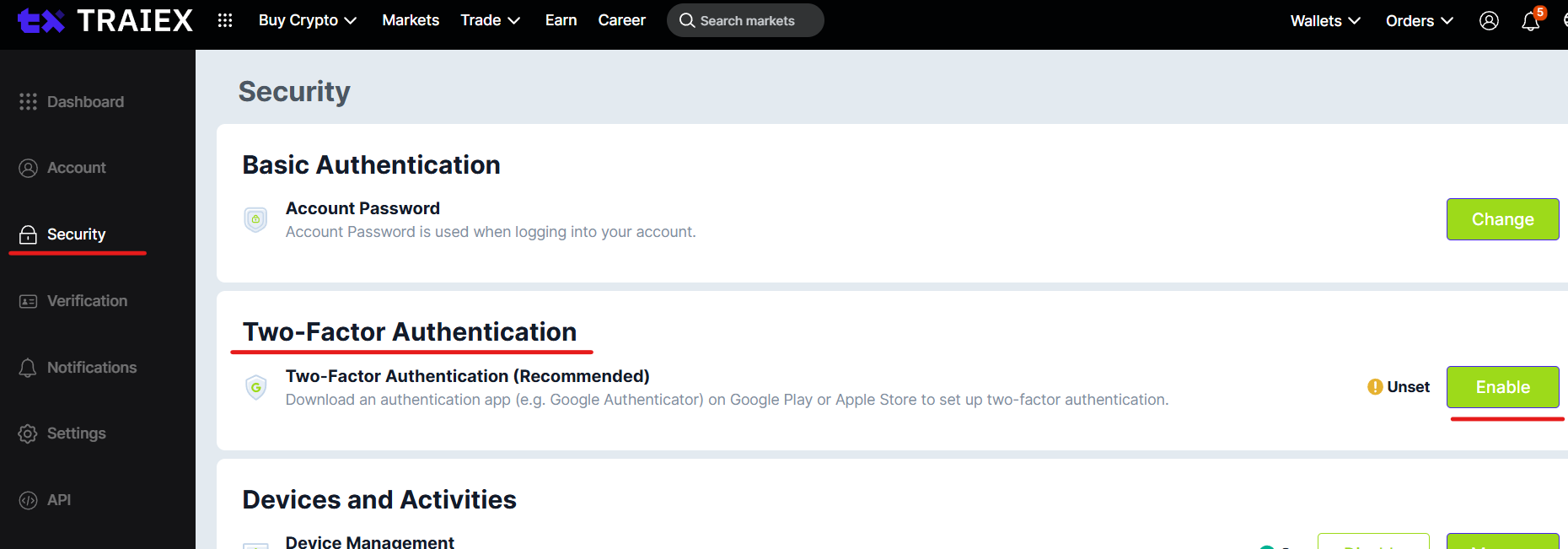
Please download Google Authenticator on your device to setup 2FA
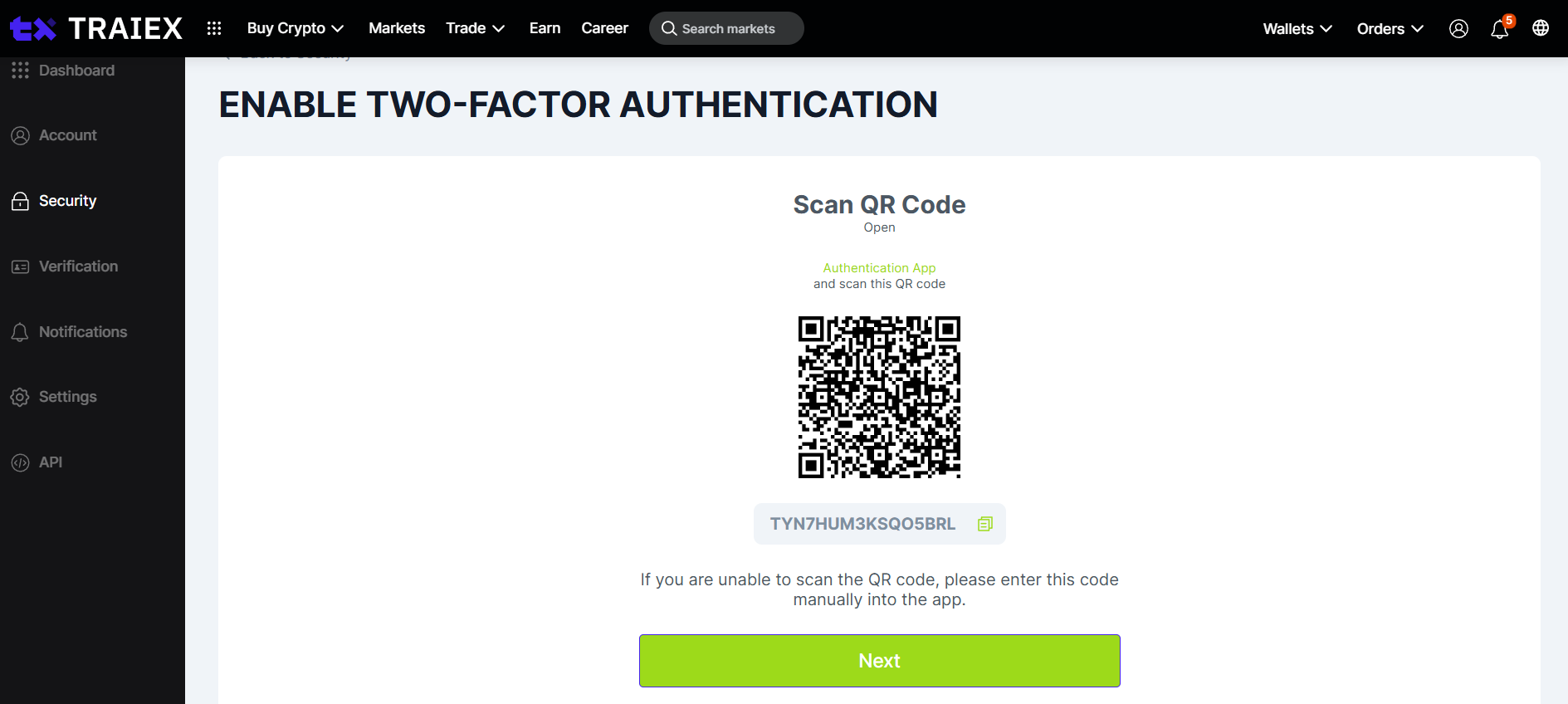
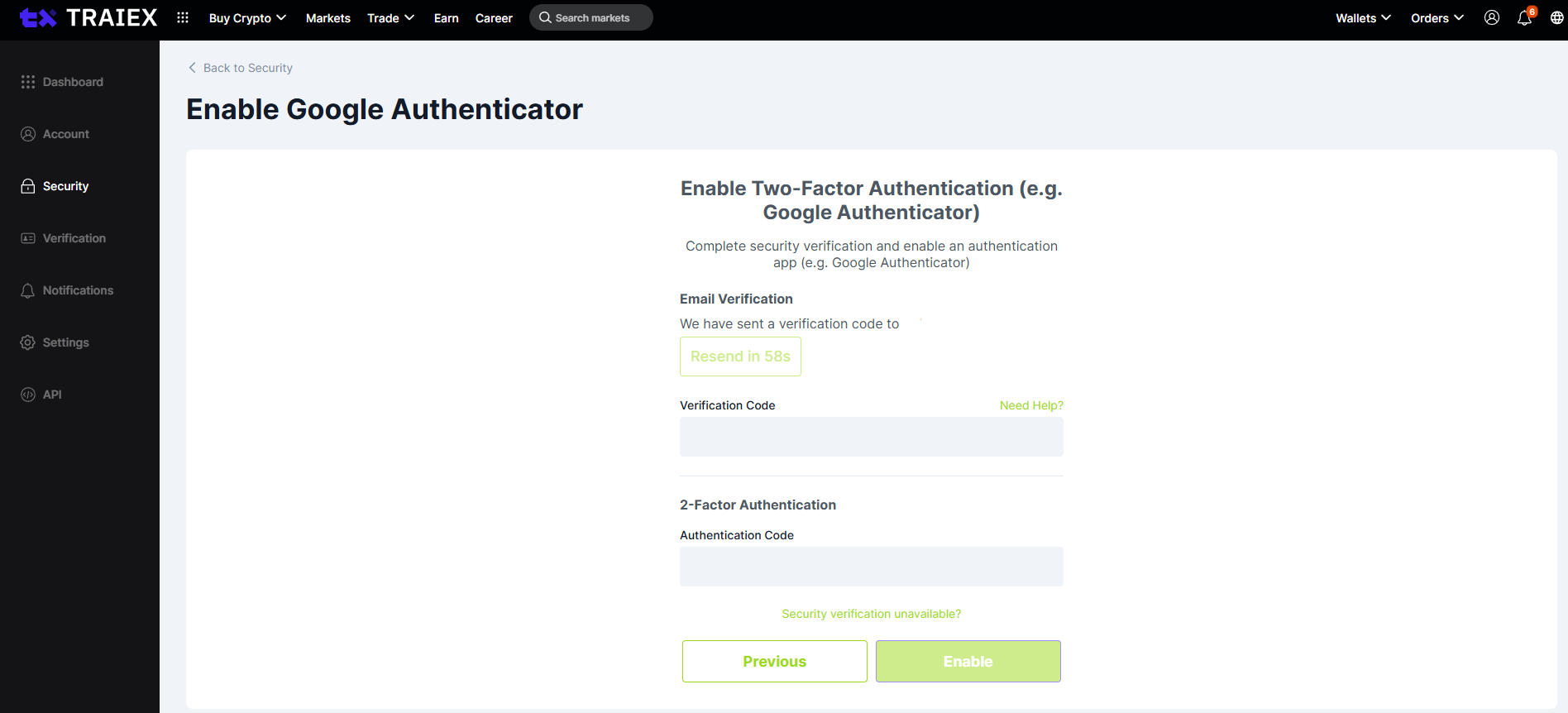
Follow 2FA setup process and "enable"
1. Click "send code" to receive verification code via your registered email
2. Enter your 2FA from the device
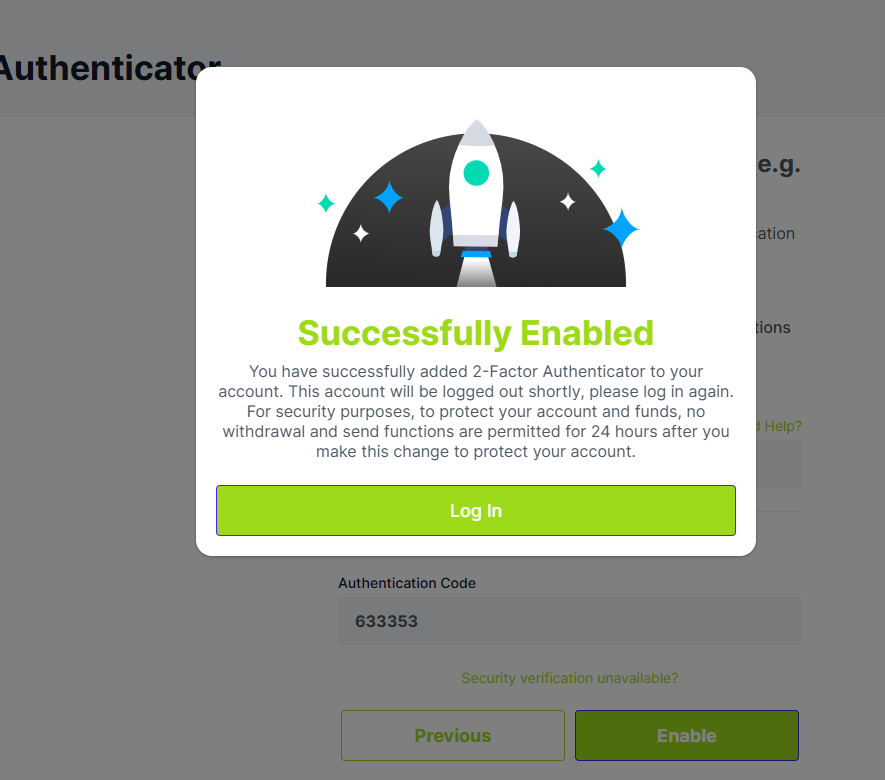
Once the 2FA is enabled a "success" pop-up message notification will appear on the page
How to Remove 2FA
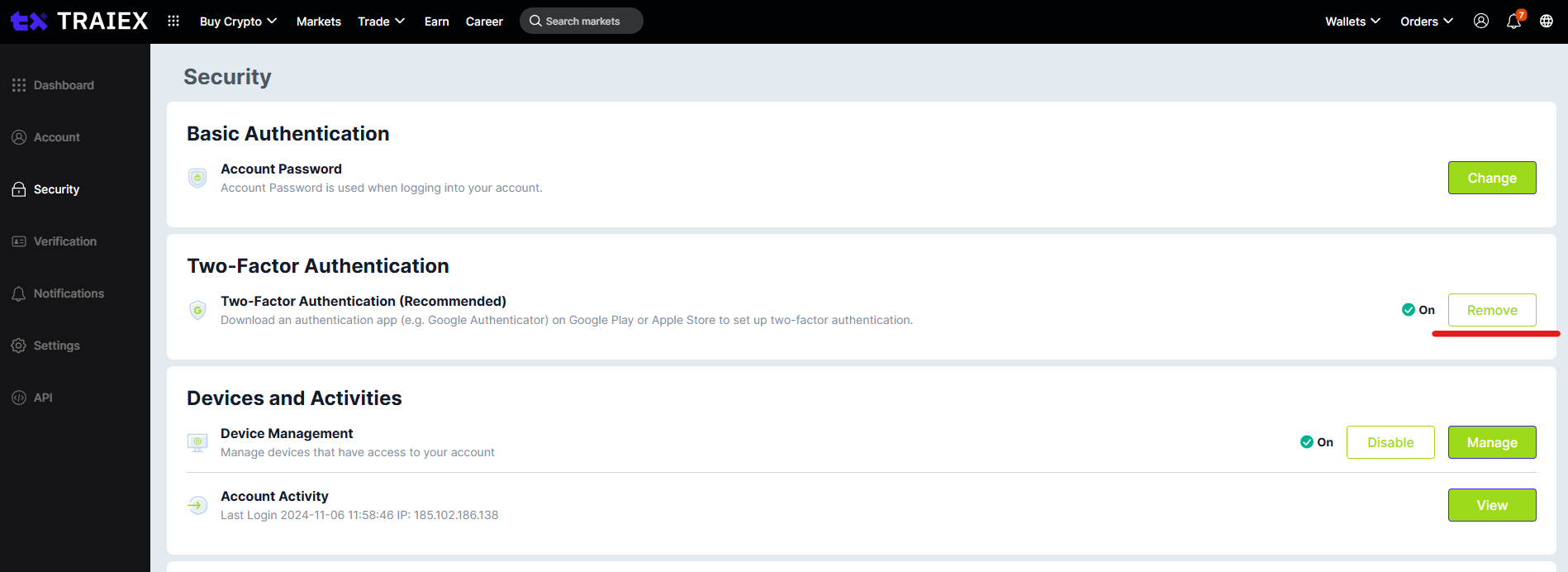
Please login to Traiex account -> Go to dashboard -> Security -> Remove
**Note: "Withdrawal" and "Send" functions will temporarily be disabled for 24 hours after you removed your 2FA
1. Click "send code" to receive verification code via your registered email
2. Enter your 2FA from the device
3. Click "Remove"
Once you have successfully removed, you may now log in without 2FA
Was this article helpful?
That’s Great!
Thank you for your feedback
Sorry! We couldn't be helpful
Thank you for your feedback
Feedback sent
We appreciate your effort and will try to fix the article